Getting Started

Your First Few Taps In The App

A quick look at onboarding — picking your app language, a 3-step walkthrough, creating your account, and setting up your profile.

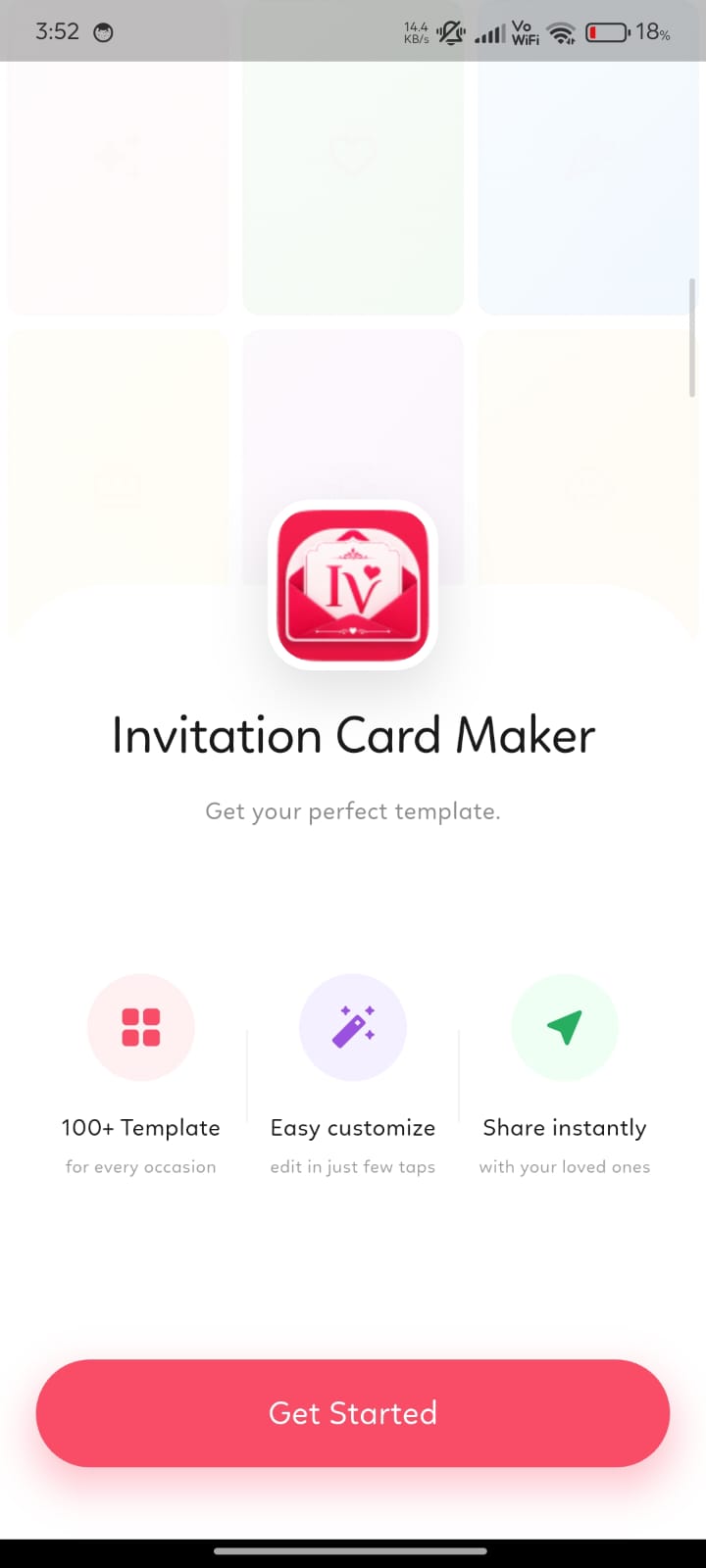
InviteVeda welcome screen
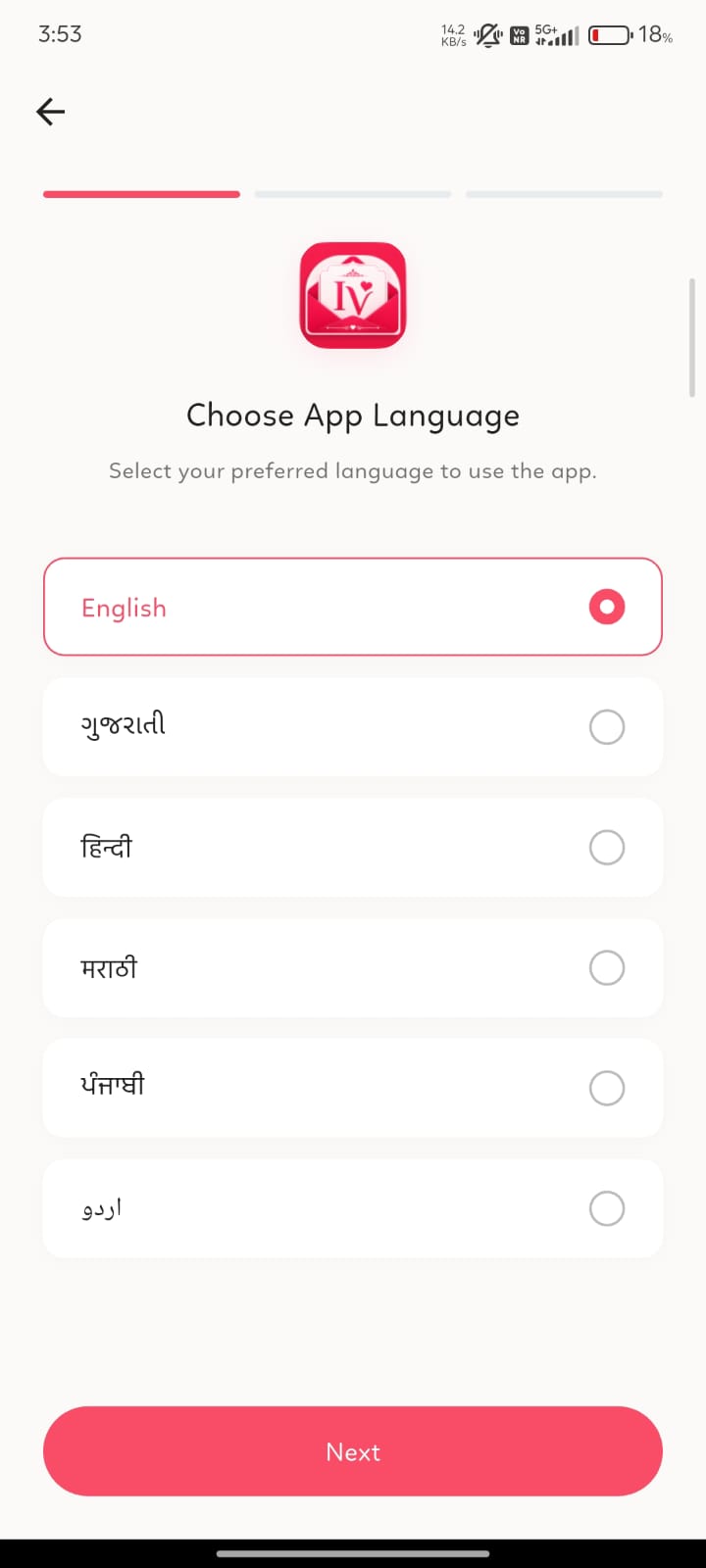
Choose App Language screen
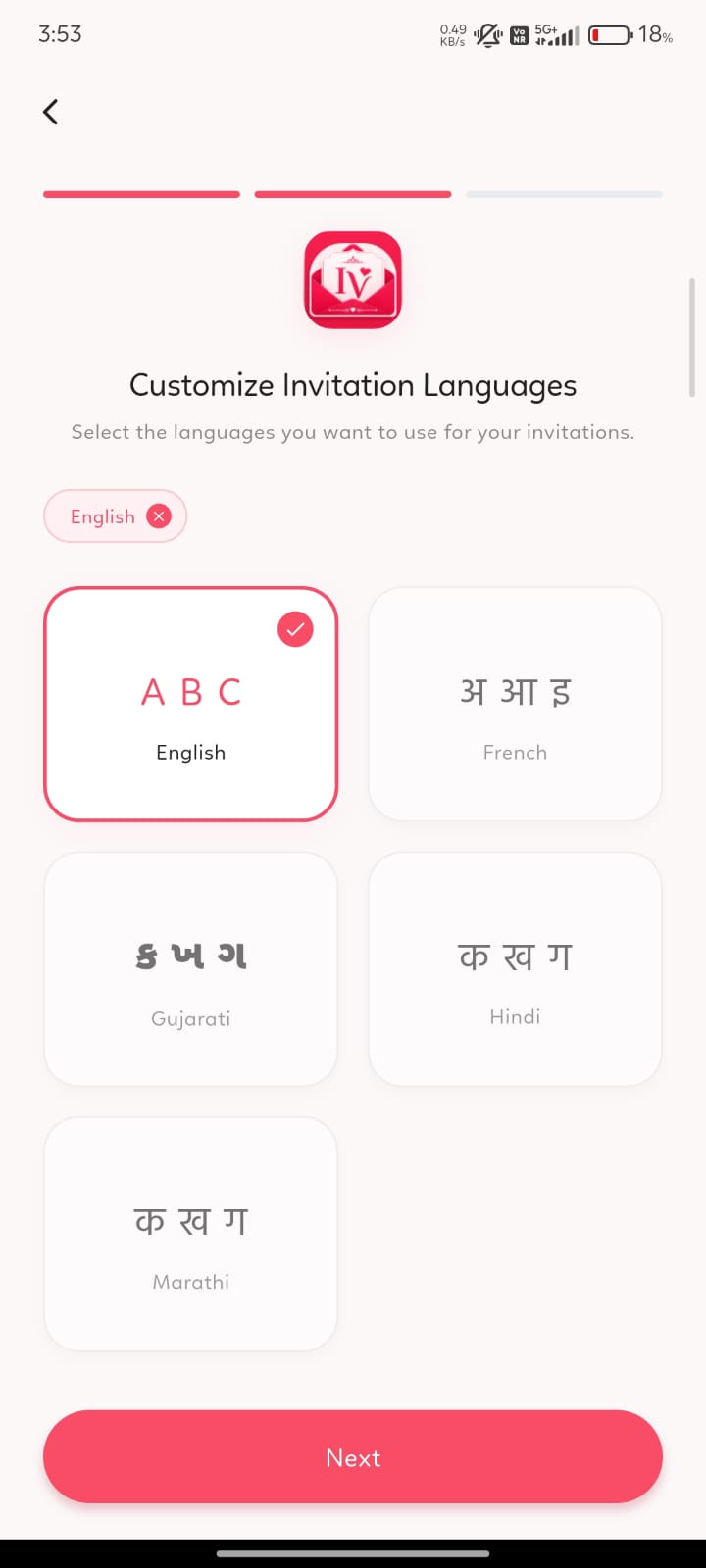
Customize Invitation Languages screen
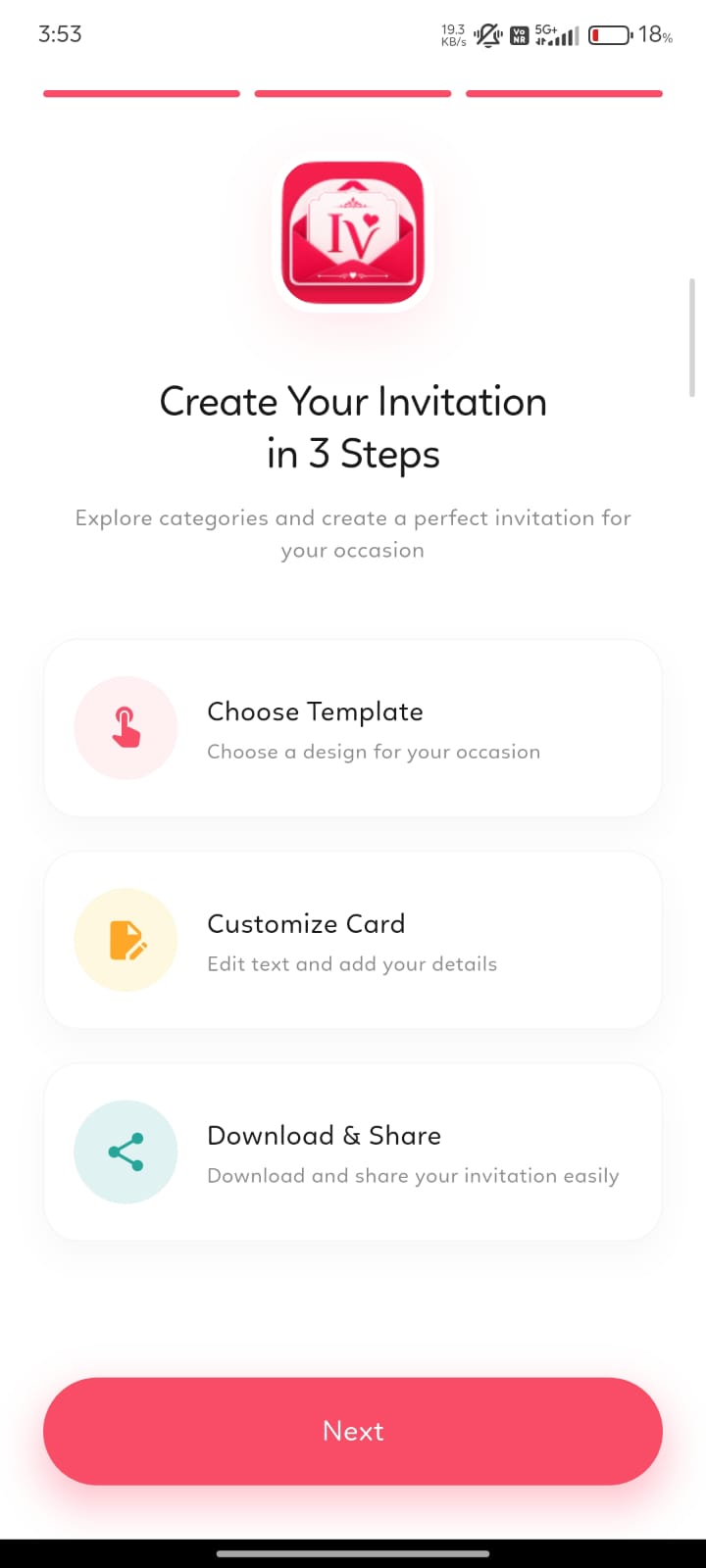
Create Your Invitation in 3 Steps screen
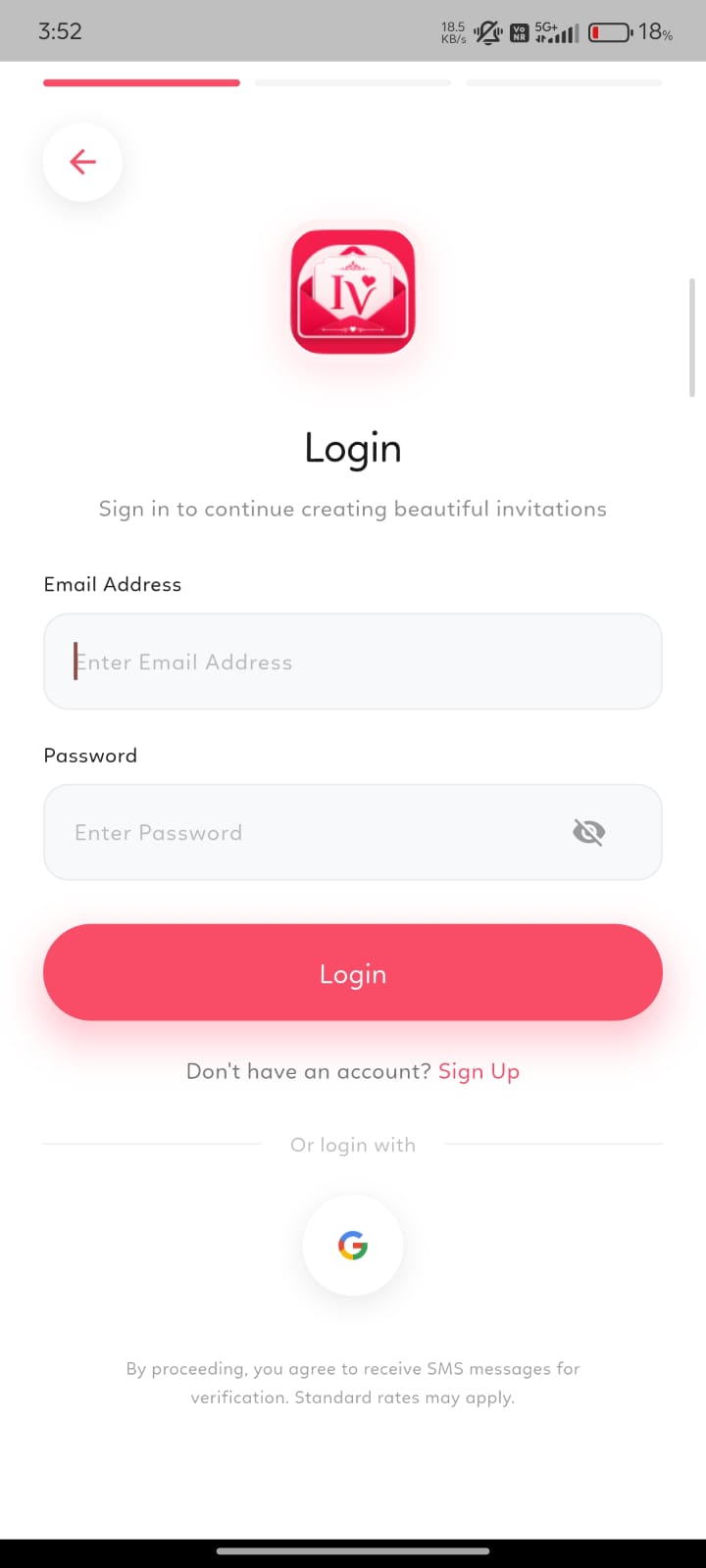
Login screen
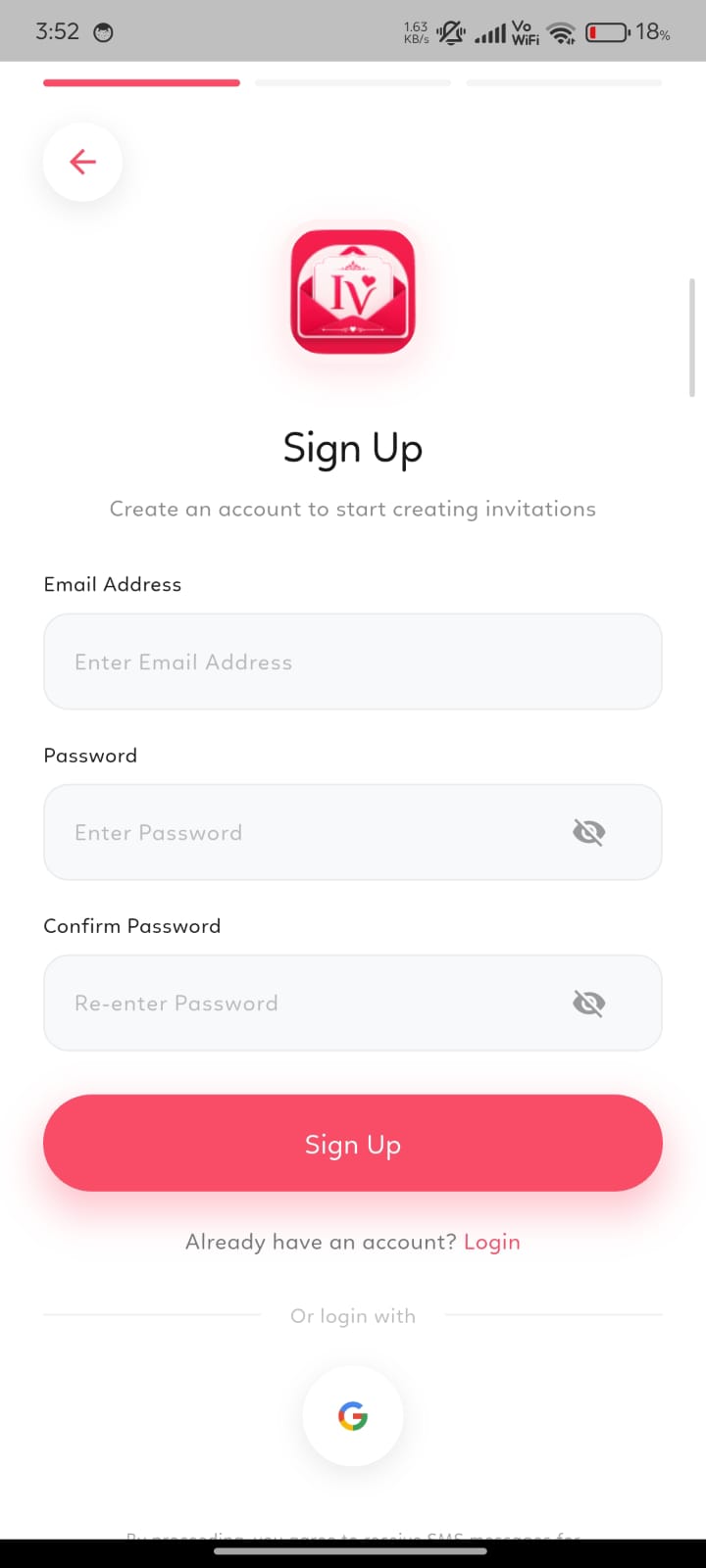
Sign Up screen
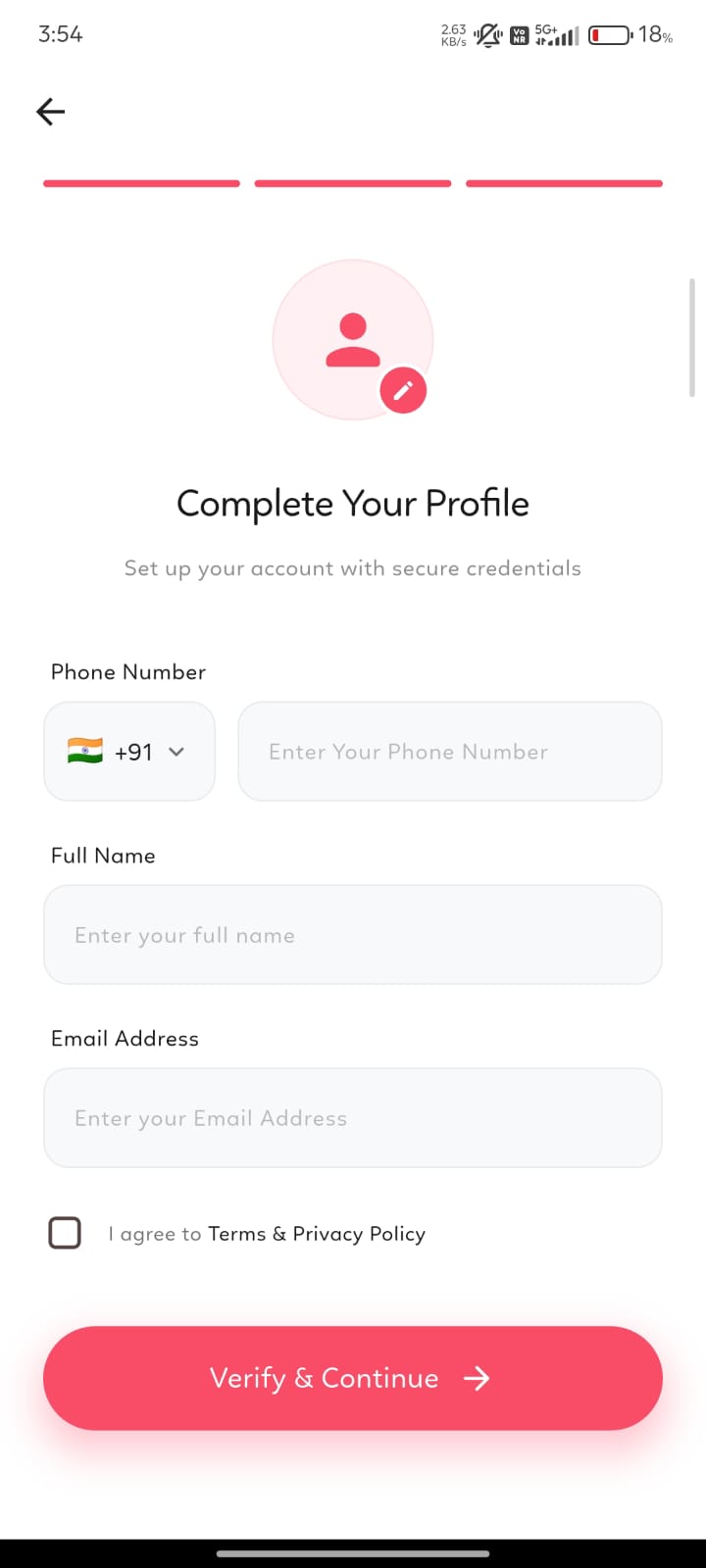
Complete Your Profile screen
Step By Step

How InviteVeda Works

Jump to any chapter, or scroll through the full walkthrough below.

01

Account Setup & Authentication

Launch InviteVeda on your mobile device and choose how you'd like to sign in.

  • Google Sign-In — one-tap instant authentication using your Google Account.
  • Email & Password — sign up or log in using your email address and a custom password.
Login screen
Sign Up screen
02

Browsing & Finding Templates

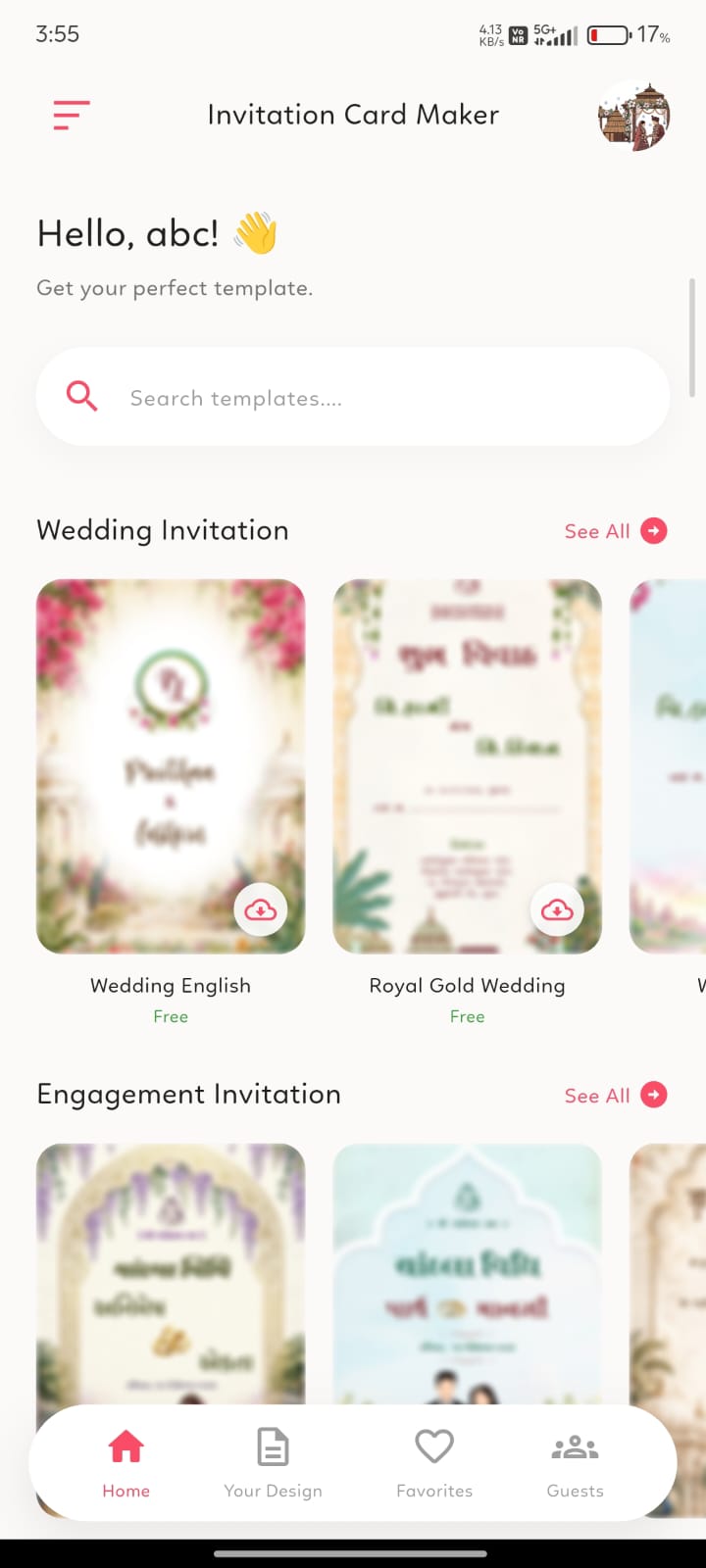
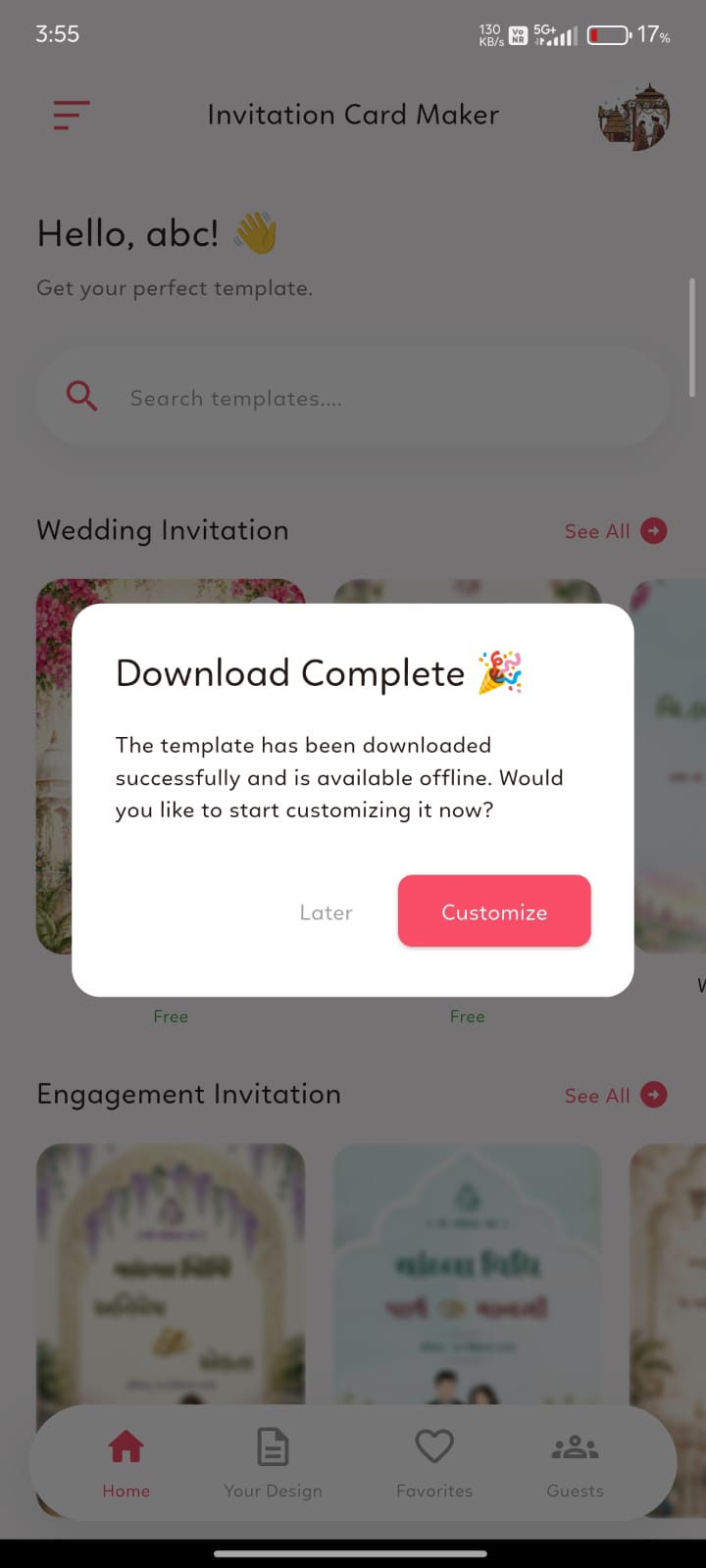
Explore featured categories directly from the Home dashboard, including Wedding, Engagement, Reception, Sangeet, Haldi, Birthday, and Special Events.

  • Search Bar — quickly find specific card styles, e.g. "Royal Floral Wedding" or "Traditional Haldi".
  • Template Preview — tap any thumbnail to view its page count, supported languages, and a high-resolution layout preview.
Home dashboard with template categories
Download complete prompt to customize
03

Selecting Card Language

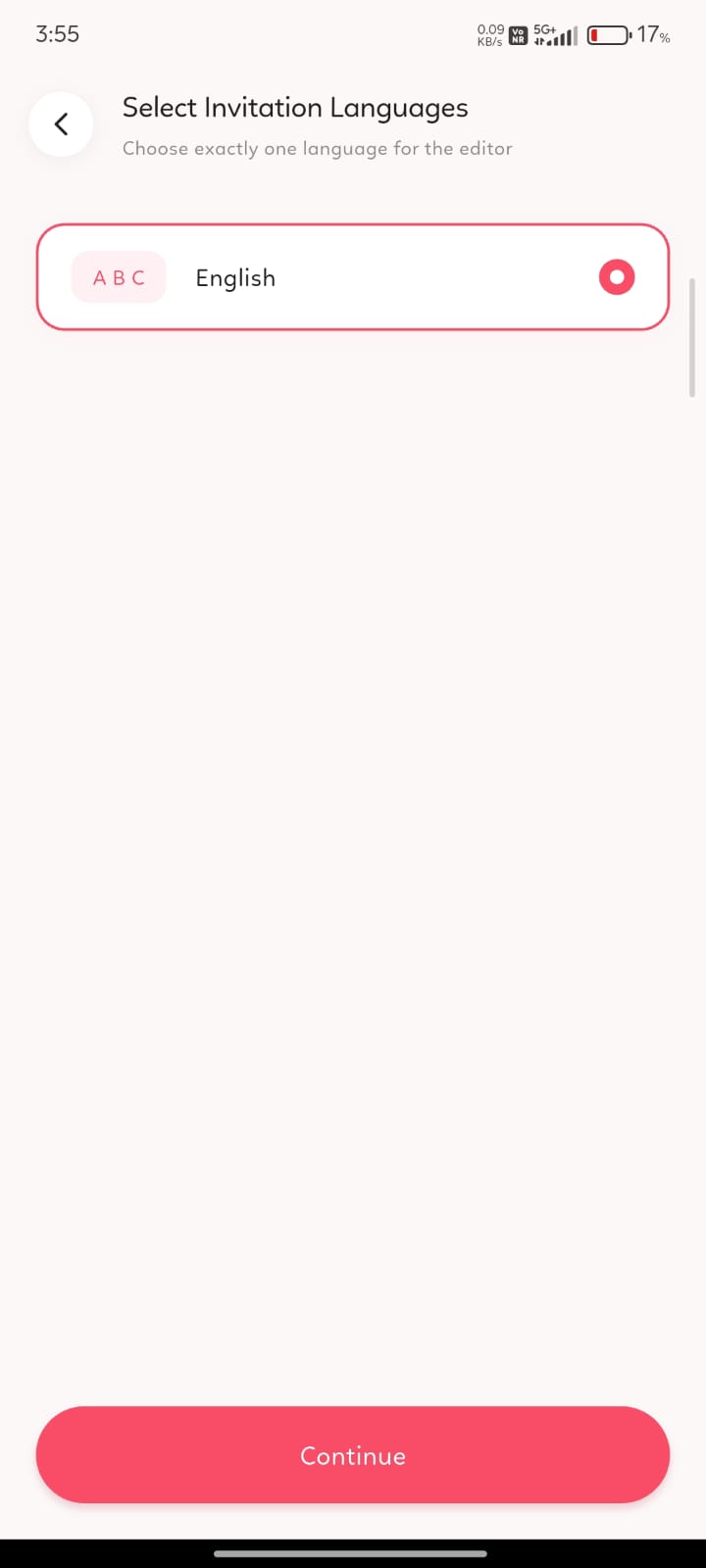
Tap "Customize This Card" or select the language icon on a template, then choose your desired card language.

  • Supported scripts — English, Hindi, Gujarati, Marathi, Punjabi, Tamil, Telugu, Malayalam, Urdu, and more.
  • Instant reflow — the app instantly formats and aligns every text field to fit the chosen script.
Select Invitation Language screen
04

Customizing Your Invitation Card

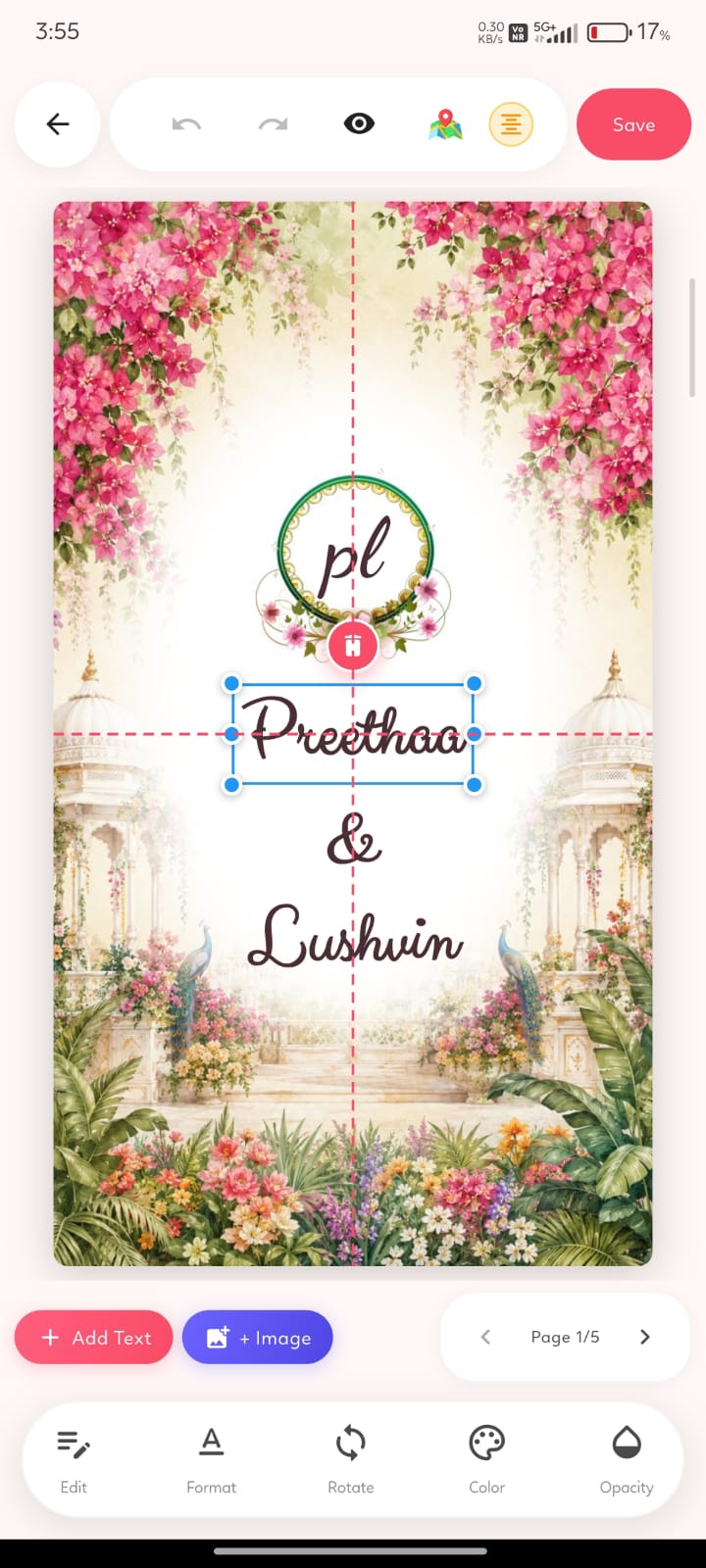
The multi-page drag-and-drop editor gives you full control over every detail of your card.

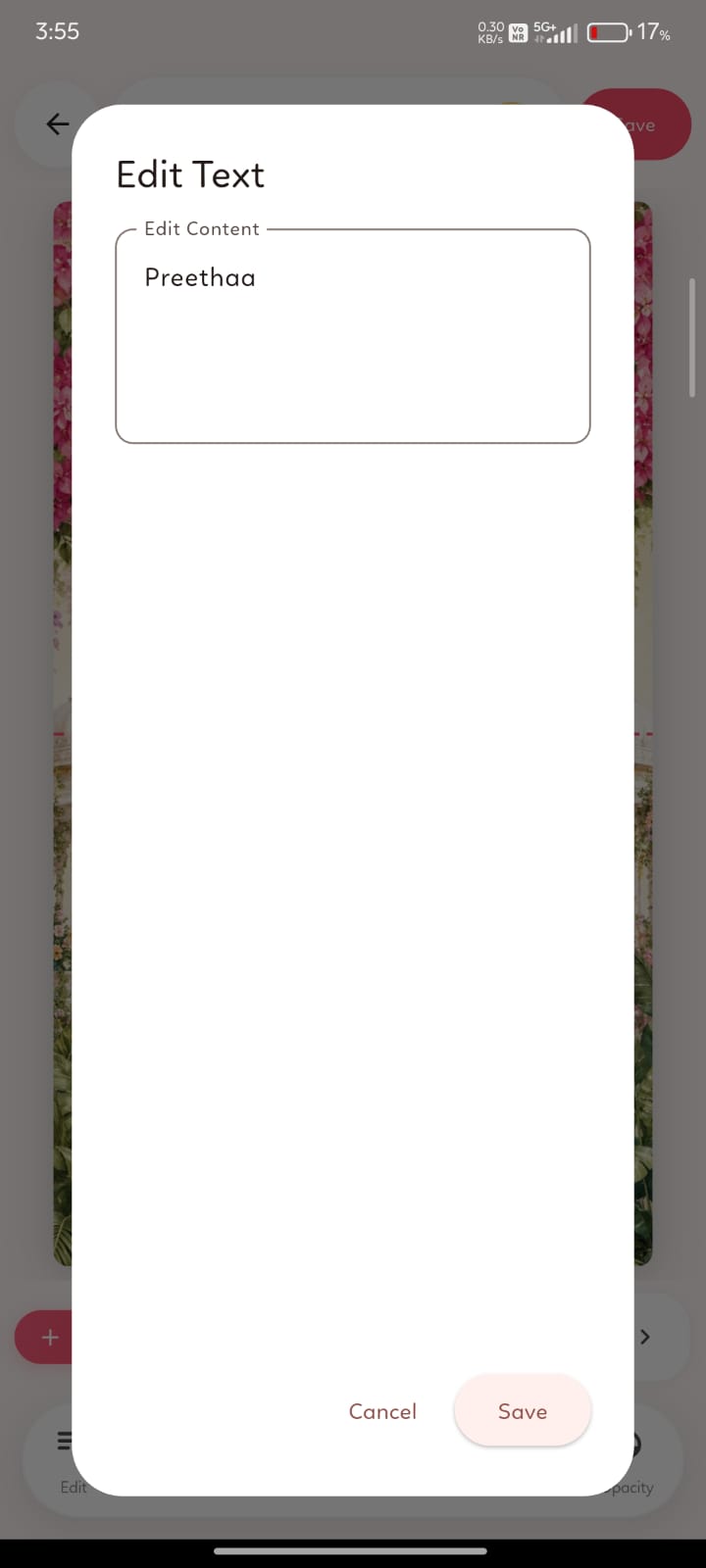
  • Text Editing — double-tap any field (names, date, venue, RSVP details) to edit it directly.
  • Fonts & Colors — choose from a curated font library, adjust sizes, colors, and alignment.
  • Photos & Frames — add photos from your camera or gallery, plus decorative frames, borders, stickers, and motifs.
  • Drag, Zoom & Layers — drag elements anywhere, pinch-to-zoom to resize, and reorder layers front-to-back.
  • Multi-Page Management — navigate with the bottom page slider; reorder or hide pages as needed.
  • Undo & Redo — instantly undo or redo any action from the top toolbar.
Card editor screen with toolbar
Edit Text dialog
05

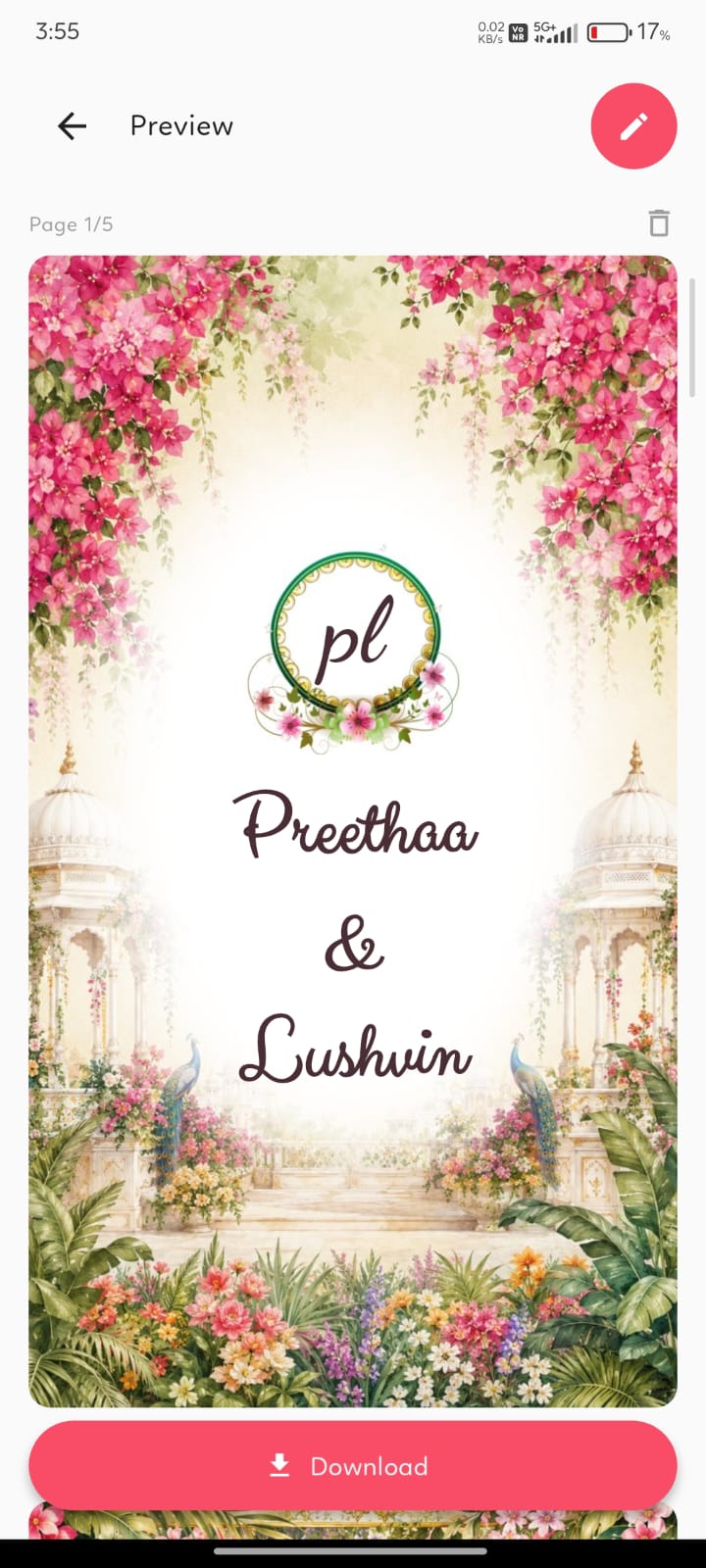
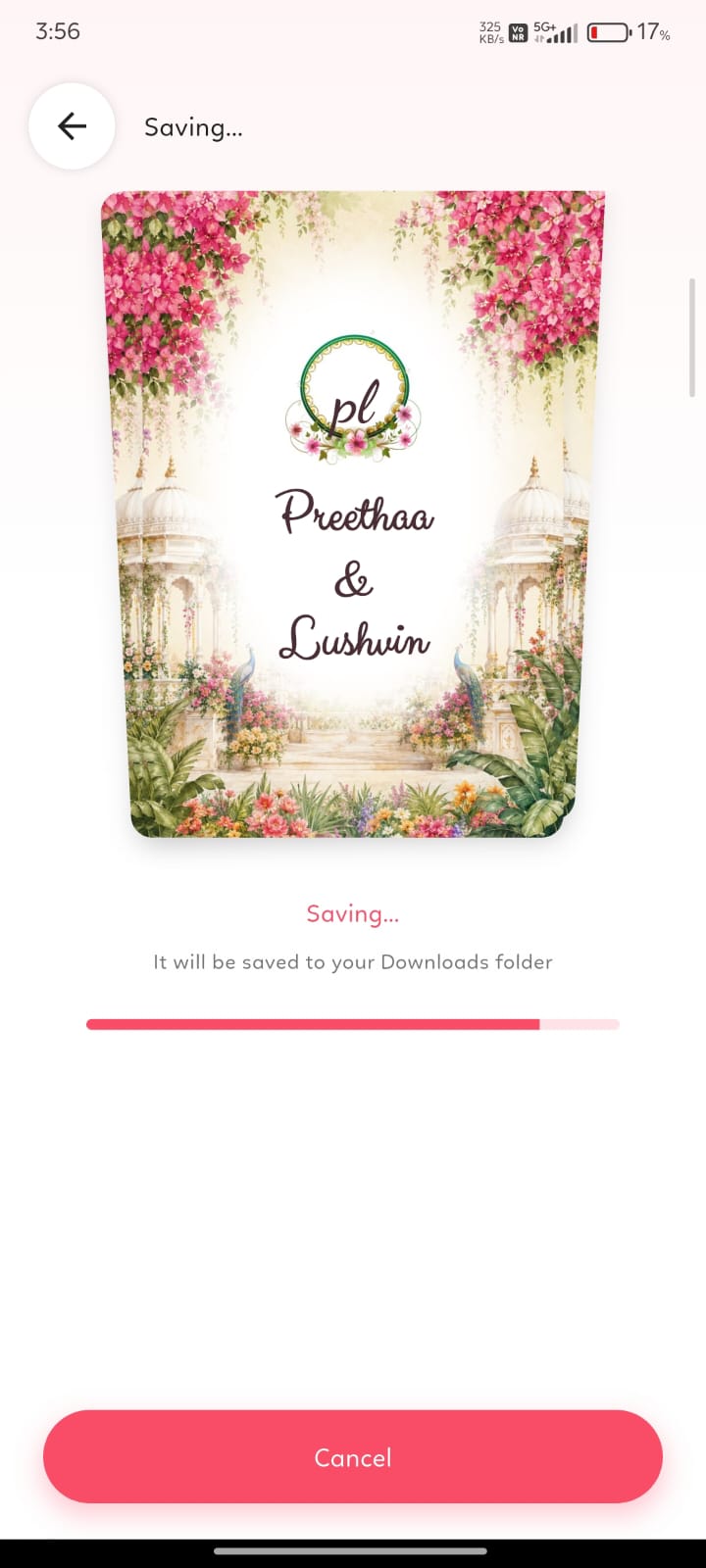
Preview & HD PDF Generation

Once your design is ready, review every page together and export a print-ready file.

  • Full Preview — tap Preview to inspect all pages of your invitation together.
  • Download PDF — generate a high-resolution, print-ready PDF saved directly to your device.
Full card preview screen
Saving PDF progress screen
06

Sharing & Printing

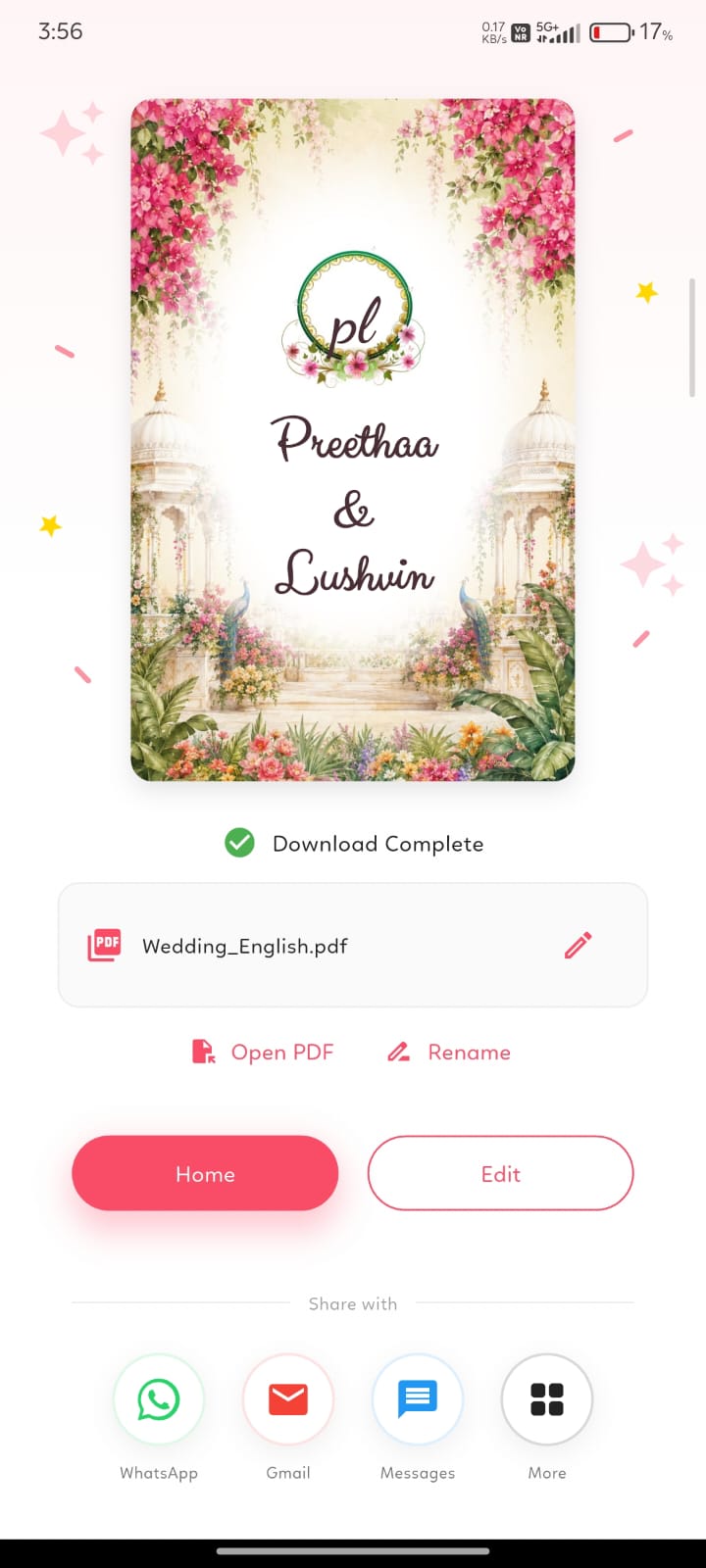
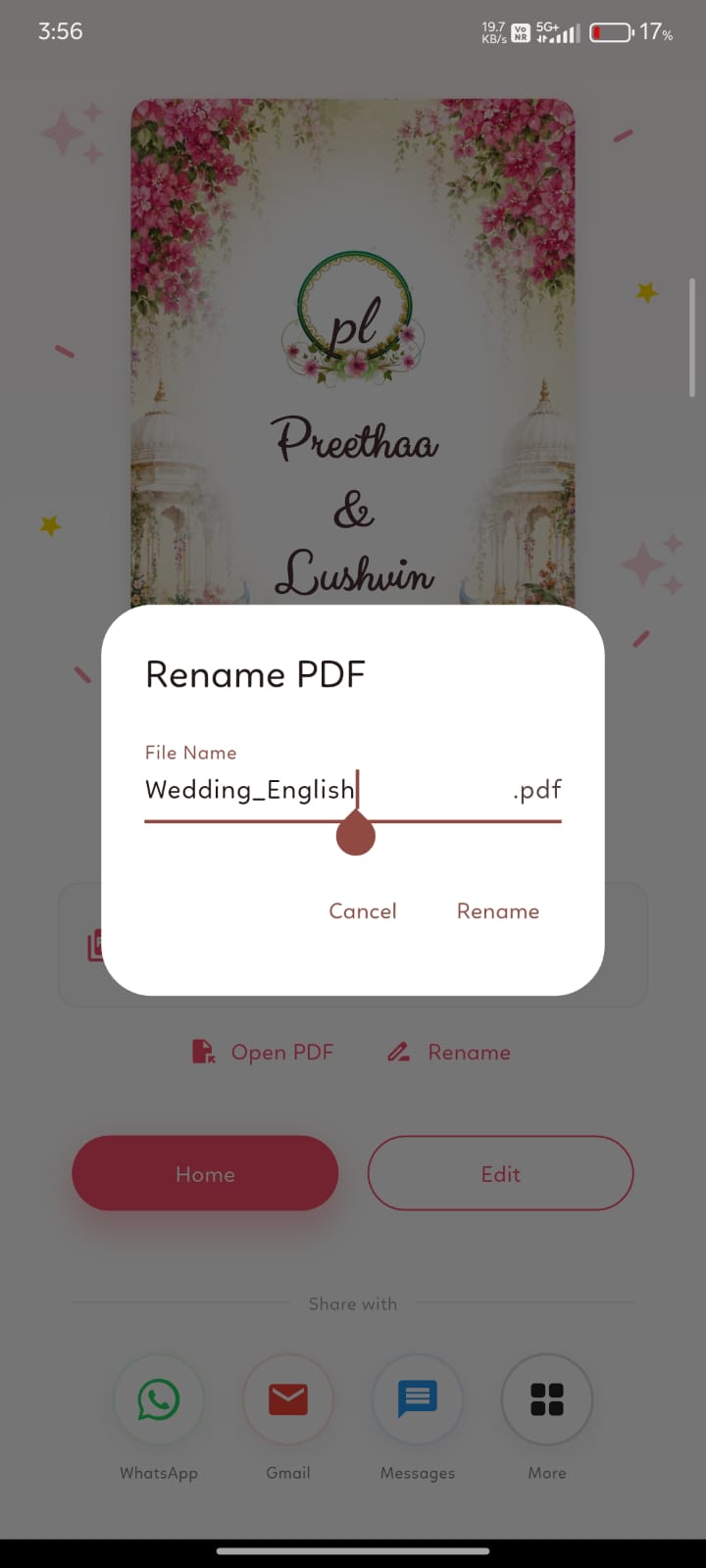
Rename your file and send your finished invitation straight to your guests.

  • Rename PDF — customize the file name (e.g. Rahul_Weds_Priya_Invitation.pdf) before saving or sharing.
  • Direct Social Sharing — share your HD PDF via WhatsApp, Gmail, Messages, or Instagram.
  • Print Ready — the exported PDF uses crisp vector text and graphics suitable for professional printing.
Download complete and share screen
Rename PDF dialog
07

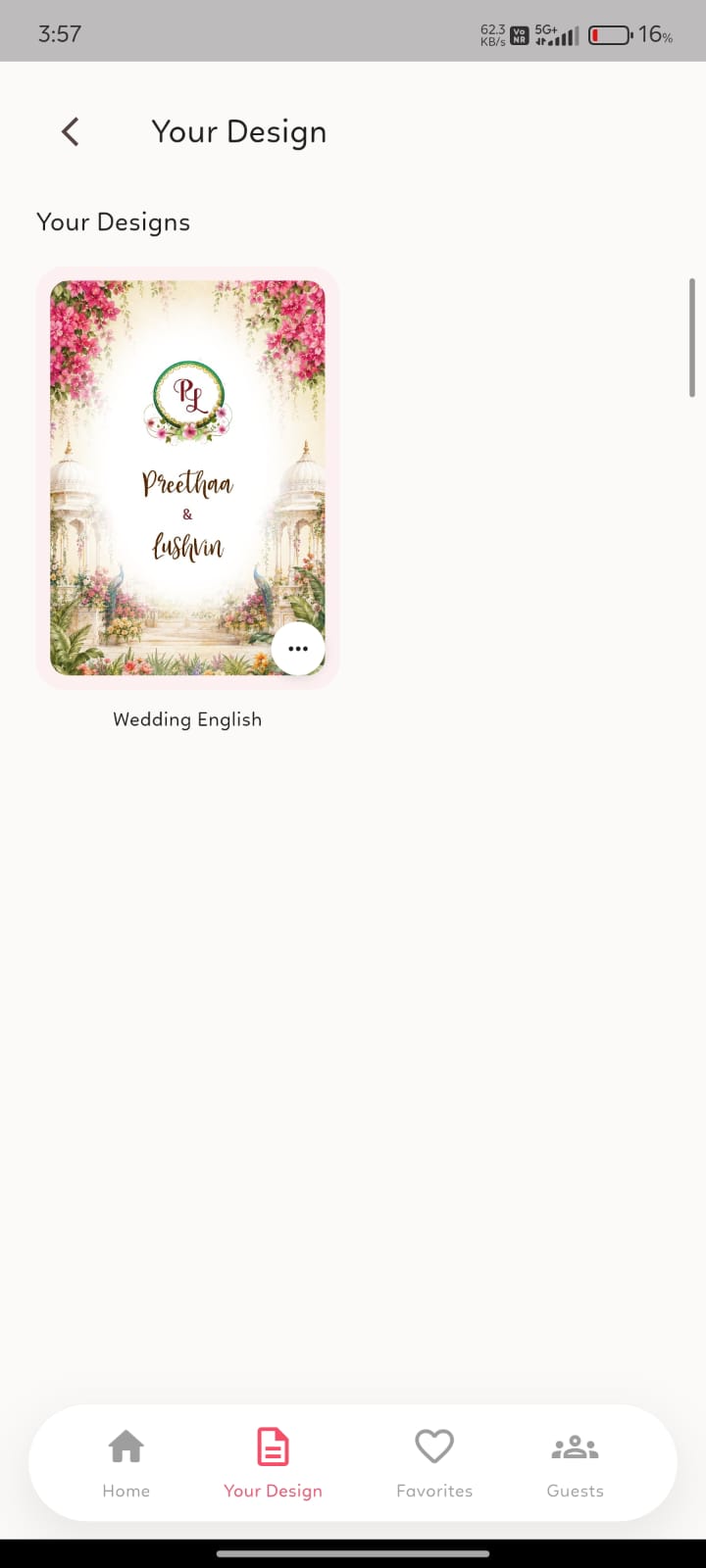
Accessing Saved Drafts & Designs

Tap the "Your Designs" tab in the bottom navigation bar.

  • All your in-progress drafts and completed invitation cards are securely saved here.
  • Open any existing design at any time to resume editing, modify details, or re-download the PDF.
Your Designs tab
Good To Know

Navigation & Usability Tips

Step-by-Step Back Navigation

Tap the top-left back arrow icon or use your phone's back gesture to step back through visited screens sequentially without skipping steps.

Pull-to-Refresh

Pull down on the Home screen to refresh template catalogues and synchronize your latest saved drafts.